Setting up home broadband can sometimes feel like assembling a puzzle without the picture on the box. Wires, flashing lights, passwords, routers, and endless setup screens can make anyone nervous. The good news? Setting up EE Home Broadband is much easier than most people expect. Whether you are installing EE Full Fibre, Part Fibre, or a standard broadband connection, the process is designed to be quick and beginner-friendly.
Table of Contents
ToggleEE has become one of the UK’s most recognized broadband providers, especially after introducing advanced Wi-Fi 7 hardware and upgraded Smart Hub systems for Full Fibre customers. Recent reports show EE now includes Wi-Fi 7-enabled routers with several fibre plans, helping users achieve faster speeds, lower latency, and improved device connectivity.
This complete guide walks you through every step of the setup process, explains how EE Smart Hubs work, covers troubleshooting tips, and helps you optimize your home Wi-Fi for the best possible performance.
Understanding EE Home Broadband Services
EE offers several broadband packages designed for different kinds of users. Some households only need reliable browsing and video streaming, while others require ultra-fast fibre capable of handling gaming, 4K streaming, and multiple smart devices simultaneously. That is where EE’s different broadband types come into play. Understanding which service you have makes setup much easier because the hardware and connection method may differ slightly.
Types of EE Broadband Connections
EE currently provides three major broadband types:
Broadband Type | Speed Range | Best For |
Standard Broadband | Lower speeds | Light browsing and emails |
Part Fibre Broadband | Medium speeds | Streaming and home working |
Full Fibre Broadband | Ultra-fast speeds | Gaming, 4K streaming, smart homes |
Full Fibre broadband uses fibre optic cables directly into your property, while Part Fibre combines traditional copper lines with fibre infrastructure. According to EE’s official setup guides, Full Fibre customers usually receive a Smart Hub connected to an Openreach modem through a WAN port.
EE Smart Hub Models Explained
EE has introduced several Smart Hub models over the years, including:
- Smart Hub
- Smart Hub Plus
- Smart Hub 6 Plus
- Smart Hub 7 Plus
- Smart Hub 7 Pro
The newer Smart Hub 7 series includes Wi-Fi 7 technology for stronger wireless performance and better handling of multiple connected devices. Recent reports suggest EE became one of the first major UK broadband providers to include Wi-Fi 7 hardware with fibre plans.
Think of the Smart Hub as the “brain” of your home internet system. It distributes internet signals throughout your home and manages connected devices. The newer the hub, the smarter and faster the network performance generally becomes.
What Comes Inside the EE Broadband Box
Opening the EE broadband package feels a little like unboxing a new gadget. Everything is neatly organized, and EE usually includes almost everything required for installation. Missing cables or confusion about accessories is uncommon because the packaging is designed for self-installation.
Router Accessories and Cables
Depending on your package, you may receive:
- EE Smart Hub or Smart Router
- Ethernet cable
- Power adapter
- Broadband cable
- Broadband filter
- Wi-Fi details card
- Quick start guide
For Full Fibre users, the setup often requires connecting the router to an Openreach modem using the supplied ethernet cable with red ends.
If you ordered Wi-Fi extenders, the package may also include:
- Wi-Fi Extender
- Ethernet cable
- Power supply
- Setup instructions
Important Information on the Router Label
The back of the router contains critical details, including:
- Default Wi-Fi name
- Wi-Fi password
- QR code for quick connection
- Hub Manager admin password
This information is like the “key” to your internet house. Without it, connecting devices becomes difficult. EE recommends scanning the QR code for instant device setup when possible.
Preparing for Your EE Broadband Installation
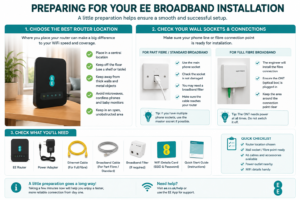
Before plugging anything in, spend a few minutes planning the installation. A poorly placed router can reduce internet speeds dramatically, even if you purchased the fastest package available.
Choosing the Best Router Location
Router placement matters more than many people realize. Imagine your Wi-Fi signal as light from a lantern. Walls, metal surfaces, mirrors, and appliances can block or scatter the signal. EE recommends placing the hub:
- In a central location
- Off the floor
- Away from microwaves and TVs
- Away from thick walls
- Open and unobstructed
Avoid hiding the router inside cabinets or behind furniture. That is like trying to hear music through a closed door — the signal weakens before reaching you.
Checking Your Wall Sockets and Fibre Setup
Full Fibre users typically have an Openreach Optical Network Terminal (ONT) installed by an engineer. EE explains that installation may involve drilling a small hole and fitting fibre equipment inside the property.
Part Fibre and standard broadband users usually connect through a phone socket using a broadband filter. Make sure:
- The socket is accessible
- Power outlets are nearby
- Existing cables are undamaged
Taking these small precautions prevents setup frustration later.
How to Set Up EE Full Fibre Broadband
Setting up EE Full Fibre is surprisingly simple once the engineer completes the installation. Most of the heavy lifting is already done before your router even arrives.
Connecting the Openreach Modem
EE’s setup instructions recommend the following process:
- Plug the ethernet cable with red ends into the router’s WAN port.
- Connect the other end into the Openreach modem’s LAN1 or Port 1 socket.
- Ensure all cables are firmly attached.
This connection acts like a bridge between your home and EE’s fibre network. Without it, the router cannot receive internet data.
Powering On the Smart Hub
Once connected:
- Plug the power cable into the router.
- Switch on the power supply.
- Press the router’s power button.
The hub light usually flashes green before turning solid aqua when connected successfully. EE states this process may take between 3 to 10 minutes depending on the hub model.
Connecting Devices to Wi-Fi
You can connect devices in three ways:
- Using the Wi-Fi name and password
- Scanning the QR code
- Using WPS pairing
Most modern devices connect instantly by scanning the QR code on the router. This method avoids typing long passwords and reduces setup mistakes.
How to Set Up EE Part Fibre or Standard Broadband
Not every home has Full Fibre yet, but EE’s Part Fibre and standard broadband still provide reliable performance for most households.
Using Broadband Filters
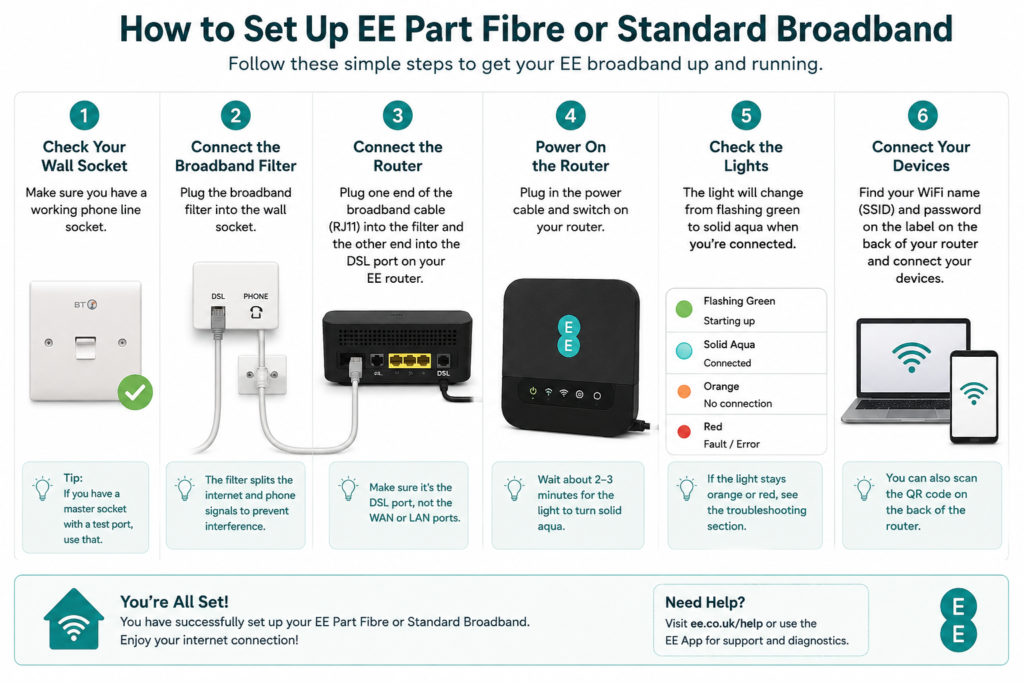
If your property uses a traditional phone line, you may need a broadband filter. The filter separates phone and internet signals to prevent interference.
EE’s official setup process includes:
- Connecting the broadband cable into the router
- Plugging the filter into the wall socket
- Connecting the cable to the filter
Homes with modern Openreach sockets may already contain built-in filters, meaning the extra filter is unnecessary.
Activating the Router
Once powered on, the router light changes from green to solid aqua when the connection becomes active. According to EE, activation generally takes about three minutes under normal conditions.
If the light remains orange or red for an extended period, there may be a line issue or incorrect cable placement.
EE Smart Hub Lights and What They Mean
Router lights are basically the internet’s way of communicating with you. They may seem confusing at first, but each color tells a story.
Aqua, Green, Orange, and Red Indicators
Light Color | Meaning |
Solid Aqua | Connected and working |
Flashing Green | Starting up |
Orange | Connection issue |
Red | Major fault or no connection |
EE’s documentation confirms that a solid aqua light indicates a successful broadband connection.
If you see persistent red or orange lights:
- Restart the router
- Check all cables
- Verify modem connections
- Wait several minutes for reconnection
Sometimes patience is all that is needed because broadband services occasionally take time to authenticate.
Setting Up EE Wi-Fi Extenders
Large homes often struggle with weak Wi-Fi zones. That is where EE Wi-Fi extenders become useful. They help spread internet signals into rooms where the main router struggles to reach.
Wireless WPS Setup
EE recommends this quick wireless method:
- Plug in the Wi-Fi extender near the router
- Press the WPS button on the hub
- Press the WPS button on the extender within two minutes
- Wait until the extender light turns aqua
After setup, move the extender halfway between the router and weak signal area.
Wired Ethernet Setup
For stronger stability, you can use ethernet setup:
- Connect the router and extender using an ethernet cable
- Wait for the extender light to turn aqua
- Disconnect the cable
- Reposition the extender
This method usually provides faster synchronization and improved performance.
Using the EE App for Broadband Management
The EE app acts like a control center for your home network. Instead of manually accessing router settings, the app simplifies management for beginners.
Managing Wi-Fi Settings
Using the EE app, you can:
- Change Wi-Fi names
- Update passwords
- View connected devices
- Restart the router
- Manage parental controls
EE’s support pages explain that Smart Hub settings can also be managed through the Hub Manager by entering 192.168.1.254 into a web browser.
Running Broadband Diagnostics
The app can identify common issues automatically. If your internet slows down, the app may:
- Test line performance
- Check signal quality
- Recommend extender placement
- Detect outages
This feature removes much of the guesswork from troubleshooting.
Common EE Broadband Problems and Fixes
Even the best broadband systems occasionally encounter issues. The key is knowing how to fix them quickly without panic.
No Internet Connection
If your internet suddenly stops:
- Restart the router
- Check cables
- Verify modem lights
- Wait 5 minutes
- Test another device
EE’s troubleshooting pages stress checking the WAN connection and Openreach modem ports carefully.
Slow Wi-Fi Speeds
Slow internet often has simple causes:
- Too many connected devices
- Poor router placement
- Signal interference
- Outdated hardware
Moving the router higher or closer to the center of the home can dramatically improve speeds.
Devices Not Connecting
If devices refuse to connect:
- Forget and reconnect to Wi-Fi
- Restart the device
- Re-enter the password
- Use QR setup instead
Sometimes older devices may not fully support modern Wi-Fi standards, especially with newer Wi-Fi 7 hardware.
EE Broadband Security Tips
Home broadband security matters more today than ever before. Smart TVs, cameras, phones, tablets, and gaming consoles all connect to the same network. One weak password can expose the entire system.
To improve security:
- Change the default Wi-Fi password
- Use WPA2 or WPA3 encryption
- Keep router firmware updated
- Disable unused WPS settings
- Monitor unknown devices
Think of your Wi-Fi password like the front door key to your digital home. Leaving it weak is like leaving your house unlocked overnight.
The Hub Manager allows users to control these settings directly. EE also provides app-based management for easier security updates.
EE Broadband Performance Optimization
Getting broadband installed is only half the journey. Optimizing it is where the magic happens.
To maximize performance:
- Place the router centrally
- Use extenders wisely
- Avoid overcrowded Wi-Fi channels
- Use ethernet for gaming devices
- Restart the router monthly
EE warns against using too many extenders because overlapping signals can reduce performance instead of improving it.
For gaming or streaming households, ethernet connections remain the gold standard. Wi-Fi is convenient, but wired connections deliver greater stability and lower latency.
New EE Smart Hub 7 devices with Wi-Fi 7 technology can handle multiple devices more efficiently, making them ideal for smart homes filled with connected gadgets.
Conclusion
Setting up EE Home Broadband is much easier today than it was just a few years ago. EE has simplified the process with Smart Hubs, QR code connections, app-based management, and guided installation systems. Whether you are using Full Fibre or Part Fibre broadband, the overall setup process is straightforward enough for most users to complete without technical expertise.
The key to a successful setup lies in understanding your equipment, placing the router correctly, and using the available tools like the EE app and Wi-Fi extenders wisely. A properly configured EE broadband system can deliver fast, reliable internet for streaming, gaming, remote work, and smart home devices without constant interruptions.
Broadband is no longer just a convenience — it is the heartbeat of the modern home. With the right setup, your EE connection can become smooth, powerful, and dependable every single day.
Read Also:
Unlocking Wellness: How Your Super DE is Transforming the Superfood Industry
Tiqets: Your Ultimate Ticketing Platform for Seamless Travel and Attraction Bookings
Weight Watchers Online: Achieve Your Health Goals with Personalized Weight Loss Programs
TicketNetwork: Your Go-To Marketplace for Concert, Sports, and Event Tickets
The Rise of Kontist: Smart Banking Solutions for Modern Professionals
Why Novakid Global ARABIC Is a Game-Changer in Digital Language Education
Frequently asked questions
Most EE broadband setups take between 10 and 30 minutes after activation. Full Fibre installations requiring engineer visits may take several hours.
A solid aqua light means your broadband connection is active and working correctly.
Yes. EE provides manual setup instructions for all Smart Hubs and routers through ethernet and Wi-Fi connections.
Place the router in a central, open location away from walls, microwaves, and metal objects for the strongest signal.
Wi-Fi extenders improve coverage rather than raw internet speed. They help devices receive stronger signals in weak areas of the home.