
Discover what you should know before using InVideo for video editing, including its key features, AI-powered tools, editing capabilities, pricing considerations, benefits, and limitations. This guide helps beginners and content creators understand whether InVideo is the right video editing solution for their needs.
Table of Contents
ToggleUnderstanding What InVideo Is
InVideo is a browser-based video creation and editing platform designed to combine conventional editing tools with AI-assisted workflows. That distinction matters because people sometimes think of AI video platforms as automatic generators where you enter a sentence and receive a finished video without needing to touch the timeline. InVideo has moved beyond that model, offering timeline editing, audio controls, color tools, keyframes, effects, transitions, and AI-assisted editing capabilities.
Before using InVideo for serious editing, it helps to think of it less like a vending machine and more like an assistant sitting beside your editing desk. You can tell the AI what you want, but you still have the ability to inspect clips, change their timing, rearrange the sequence, modify audio, and refine the result. This approach can be useful when you have hours of footage and do not want to manually search through every clip just to find usable moments. At the same time, AI assistance does not eliminate the need for human judgment because storytelling, pacing, continuity, brand style, and audience expectations still require review.
InVideo AI vs. InVideo Editor
The difference between InVideo AI and the InVideo Editor is one of the first things you should understand. An AI video generator focuses on creating new video content from prompts, while an AI video editor works with existing footage and helps decide how that material should be selected, sequenced, timed, synchronized, and refined. The Editor combines manual timeline editing with AI assistance, allowing you to upload your own footage and work on it directly.
This means your workflow can take several different forms. You could begin with raw interviews and ask the AI to assemble a first cut, start with an existing video and manually improve it, generate supporting B-roll, or combine uploaded footage with photographs, illustrations, typography, and generated media. These elements can remain separately editable when they are placed as individual layers on the timeline. The practical lesson is simple: decide whether you want InVideo to create, assist, or simply edit before you begin, because each workflow can use the platform differently.
How InVideo’s AI-Powered Editing Works
One of the most interesting parts of using InVideo for video editing is the way its AI assistant can work directly with a timeline rather than simply returning a finished, flattened video. You can upload footage and give the assistant a brief describing the desired result, including the approximate length, opening, ending, important material to preserve, and changes you want made. The assistant can then assemble an editable first cut, leaving you with normal clips that can be moved, trimmed, or replaced.
This changes the editing process from a sequence of repetitive clicks into more of a conversation. Imagine having 90 minutes of interview footage and wanting a two-minute promotional video. Instead of watching every second manually before creating a rough cut, you can give the system a specific instruction about the story you want and then inspect its proposed sequence. That does not mean you should blindly accept the result; rather, it gives you a starting point. The strongest workflow is often AI for the first pass, human judgment for the final pass.
Working With Your Own Footage
If you already have recordings from a phone, camera, screen recorder, or other source, InVideo can be used as a conventional editing workspace. You can upload video, images, or audio, arrange the material on the timeline, preview it, and refine the sequence. Manual editing is particularly useful because not every small change needs an AI request.
Your preparation still matters. Rename or organize important media before uploading when possible, separate different recording sessions, and know what your final video is supposed to accomplish. AI performs better when the instructions are specific, and editing becomes easier when you already understand your footage. A vague request such as “make this better” leaves too much room for interpretation, while a request explaining the intended duration, audience, pacing, important scenes, and material to remove gives the system a much clearer target.
Key Features You Should Know Before Editing
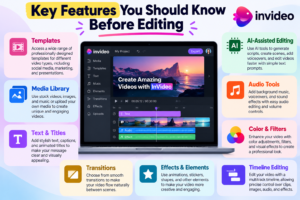
InVideo’s Editor is much closer to a conventional nonlinear editing environment than a simple template-based video maker. The platform provides a multitrack timeline and professional editing areas for color and audio, while the AI assistant can work on the same editable project. InVideo also provides tools for keyframes, motion graphics, transitions, audio mixing, color adjustments, captions, cropping, and other editing tasks.
That combination is important because beginners can start with straightforward drag-and-drop editing while more experienced users can take greater control when a project demands it. You do not necessarily have to choose between automation and manual editing. Instead, you can delegate repetitive work and then manually refine the parts that affect the video’s personality. This is particularly useful for creators who know what they want visually but would rather spend less time performing repetitive technical tasks.
Timeline Editing and Multitrack Controls
The timeline is where much of the practical editing happens. You can arrange clips, change their order, trim sections, work with multiple tracks, and refine the relationship between video and audio. A professional-style timeline gives you more control than simply selecting a template and replacing its text.
This matters because editing is rarely finished after the first automated pass. A transition may occur too early, a speaker may pause too long, a B-roll clip may cover an important visual, or a music track may become distracting during dialogue. A real timeline gives you the ability to correct those issues instead of regenerating the entire project. Think of AI as someone preparing the ingredients and making a first arrangement while the timeline remains your kitchen counter where you can still move everything around.
AI-Assisted Editing
The AI assistant can perform broader editing tasks based on natural-language instructions. Examples include creating a first cut, removing unnecessary sections, searching footage for particular people or actions, replacing takes, helping with multicamera footage, and adding B-roll.
The quality of the result depends heavily on the quality of your direction. Instead of writing a generic prompt, explain the goal and constraints. For example, you might ask for a 60-second edit that keeps a particular product demonstration, removes false starts, maintains the interview sequence, and finishes with a clear call to action. The more clearly you communicate the intended outcome, the less time you are likely to spend correcting misunderstandings.
Audio, Color, and Motion Tools
Video editing is not only about cutting clips. A video with perfect visuals can still feel amateurish if the dialogue is too quiet, background music overwhelms speech, colors change dramatically between shots, or transitions feel disconnected. InVideo provides tools for audio mixing, color adjustments, keyframes, motion graphics, and transitions.
These tools become especially important when you move from casual social clips toward business videos, tutorials, interviews, advertisements, or longer-form content. AI can assist with many parts of the process, but you should always watch the complete video with sound before exporting. Your audience experiences the finished video as one continuous piece, not as individual AI decisions, so small inconsistencies that look harmless during editing can become surprisingly obvious when everything plays together.
Is InVideo Free to Use?
Yes, InVideo provides a free option that allows users to explore its platform without immediately purchasing a subscription. The free experience provides limited access to credits and selected AI functionality, allowing potential users to test the basic workflow before committing financially.
The free option is useful for understanding the interface before paying. Rather than judging the platform from promotional examples alone, create a small project using your own material. Try importing footage, placing clips on the timeline, making a basic edit, testing an AI instruction, and exporting the result. That hands-on experiment will tell you much more about whether the workflow fits your habits than simply reading a feature list.
Using AI Without Losing Creative Control
One mistake beginners make is assuming that automation means they should surrender all decisions. That is rarely the best approach. A strong video needs choices about what to show, what to remove, where to slow down, which message deserves emphasis, and what emotional response the audience should have.
InVideo’s editable timeline helps address this because AI-generated edits can remain normal clips and layers that you can modify. You should therefore treat the AI output as a draft, not as a final authority. If the AI chooses a technically acceptable shot that does not fit your brand or story, replace it. If the pacing feels too fast, slow it down. If a generated visual looks impressive but adds nothing, remove it.
Uploading and Organizing Your Media
Before opening the Editor, spend a few minutes thinking about your source material. Separate interview footage, B-roll, music, graphics, voice recordings, and reference assets when possible. This simple preparation can make the editing process much less confusing, particularly when a project contains dozens or hundreds of files.
You can upload video, image, and audio files and place them directly onto the timeline. If you want AI to assemble a first cut, give it useful context about the footage rather than expecting it to understand your entire creative intention from a vague instruction. A clear brief acts like a map; without one, even a capable assistant can wander.
Exporting Your Finished Video
When your edit is ready, InVideo provides export options for finished video and other project elements. Depending on the workflow, users can work with formats suitable for video, audio, still images, and editable project files.
Before exporting, check the intended destination. A YouTube video, Instagram Reel, presentation, advertisement, and website background may require different dimensions, frame rates, and compression choices. Review the export settings carefully instead of assuming that one configuration is perfect for every platform.
The final export should also be inspected outside the editor. Watch the completed file from beginning to end and look for missing footage, audio problems, incorrect captions, awkward transitions, unwanted blank sections, or branding issues.
Watermarks and Export Considerations
Watermarks can be confusing when testing InVideo. Depending on the plan and project, previews or exports may contain platform branding or other restrictions. Paid plans can provide different export conditions, so it is important to understand what is included before preparing content for a client or commercial campaign.
Always inspect the actual exported file rather than judging the final result only from the preview window. If the video is being prepared for a client, business campaign, or public channel, open the exported file and watch it from beginning to end. Check the picture, audio, captions, branding, and final frame before delivering it.
Advantages and Limitations of InVideo
One major advantage is the combination of AI assistance and traditional editing control. You can delegate repetitive tasks while retaining access to a timeline for manual correction. The browser-based approach also means you can work without building your workflow around a traditional desktop-only editing application.
There are limitations as well. AI output is not automatically perfect, and generated media can consume credits. Complex productions may still require careful human review, especially when continuity, brand identity, precise storytelling, or technical delivery requirements matter. The browser-based workflow may also feel different from traditional desktop editors, so professional editors accustomed to a particular application may need time to adapt.
Tips for Getting Better Results
The easiest way to improve your InVideo workflow is to improve the instructions you give it. Tell the system what the video should achieve, who will watch it, how long it should be, what footage matters most, what should be removed, and what tone you want. A request containing actual constraints gives an AI editor something concrete to work toward.
Another useful habit is to review edits in stages. First check the overall story. Then inspect timing and continuity. After that, focus on audio, color, captions, graphics, and final export settings. Trying to judge everything simultaneously is like proofreading a book while also redesigning its cover; breaking the process into stages makes mistakes easier to spot.
Who Should Consider Using InVideo?
InVideo can be particularly useful for content creators, marketers, small businesses, educators, agencies, and teams that want to reduce repetitive editing work. Someone who regularly produces short promotional videos, tutorials, social clips, or interview content may appreciate having AI assist with first cuts and media selection.
It can also be attractive to beginners who find traditional editing software intimidating. You can begin with straightforward manual edits and gradually experiment with AI assistance as you become comfortable. The platform does not require you to master every editing technique before creating something useful, although learning basic editing principles will still improve your final results considerably.
Who May Prefer Traditional Editing Software?
If your workflow depends on highly specialized professional post-production, you may still prefer software such as Premiere Pro or DaVinci Resolve as the primary environment. This does not mean InVideo cannot contribute to such projects. Its editing workflow can complement other applications, particularly when AI-assisted first cuts or fast content production are useful.
The real question is not whether one platform is universally better. It is whether the tool matches the kind of work you perform. If you spend most of your time creating social videos and rapidly testing concepts, AI-assisted editing may save considerable effort. If you spend your days performing highly detailed post-production with complex workflows, specialized desktop software may remain central to your process.
Common Mistakes Beginners Should Avoid
InVideo has evolved into more than a simple AI video generator. Its current ecosystem combines AI-assisted creation with a browser-based editing timeline, allowing users to generate content, work with their own footage, delegate editing tasks, and manually refine the result. The biggest thing to understand before using it is that AI works best as an assistant rather than a substitute for creative judgment.
Before paying for a plan, test the workflow with a real project. Learn how the timeline works, understand how credits are consumed, experiment with AI instructions, and check the export process. Manual editing can be used for many tasks without spending AI credits, while generative and agent-assisted work uses credits, so understanding the difference can help you manage your budget.
Ultimately, the strongest results come from combining automation with human direction. Let InVideo handle repetitive work where it makes sense, but keep control over the story, pacing, brand identity, and final quality. When you approach the platform that way, it becomes less like a button that magically creates videos and more like a flexible editing partner that can help you turn raw material into something polished.
Conclusion
InVideo has evolved into more than a simple AI video generator. Its current ecosystem combines AI-assisted creation with a browser-based editing timeline, allowing users to generate content, work with their own footage, delegate editing tasks, and manually refine the result. The biggest thing to understand before using it is that AI works best as an assistant rather than a substitute for creative judgment.
Before paying for a plan, test the workflow with a real project. Learn how the timeline works, understand how credits are consumed, experiment with AI instructions, and check the export process. Manual editing can be used for many tasks without spending AI credits, while generative and agent-assisted work uses credits, so understanding the difference can help you manage your budget.
Ultimately, the strongest results come from combining automation with human direction. Let InVideo handle repetitive work where it makes sense, but keep control over the story, pacing, brand identity, and final quality. When you approach the platform that way, it becomes less like a button that magically creates videos and more like a flexible editing partner that can help you turn raw material into something polished.
Read Also:
Frequently asked questions
Yes, InVideo can be approachable for beginners because it combines straightforward timeline editing with AI assistance. You can begin by manually arranging clips and gradually use AI for tasks such as first cuts, footage selection, and other repetitive editing work.
Manual timeline editing generally does not consume AI credits. AI agent work and generative media use credits, with the amount depending on the task and model. Exporting or downloading a finished video is separate from AI generation usage.
Yes. You can upload your own video, image, and audio files and place them on the editing timeline. You can then edit the material manually or use AI assistance to help assemble and refine the project.
InVideo can handle many advanced editing tasks, but whether it can replace another editing application depends on your workflow. Users who need highly specialized post-production may continue using professional desktop software alongside InVideo.
Absolutely. AI can accelerate editing, but the final video should still be reviewed for storytelling, continuity, audio, captions, visual quality, branding, and technical export settings. Human review remains an important part of producing polished video content.