

Managing digital files has become an essential part of everyday life. Whether you are a student organizing assignments, a professional sharing business documents, a web developer handling project files, or a business owner managing important records, keeping files organized can quickly become challenging. Large files take up valuable storage space, transferring multiple documents can be inconvenient, and protecting confidential information requires extra attention.
Table of Contents
ToggleThis is where WinZip can help. It is a file compression and management utility designed to make it easier to compress files, extract archives, organize documents, protect sensitive information, and share data. Beyond creating ZIP files, WinZip offers features that can help users manage files across local computers and supported cloud storage services.
But can WinZip really make file compression and storage management easier? The answer depends on your needs, the types of files you work with, and the features available in your chosen version.
In this guide, we will explore how WinZip works, its main features, its benefits and limitations, and practical ways to use it for everyday file management.
Introduction
Managing digital files has become an essential part of everyday life. Whether you are a student organizing assignments, a professional sharing business documents, a web developer handling project files, or a business owner managing important records, keeping files organized can quickly become challenging. Large files take up valuable storage space, transferring multiple documents can be inconvenient, and protecting confidential information requires extra attention.
This is where WinZip can help. It is a file compression and management utility designed to make it easier to compress files, extract archives, organize documents, protect sensitive information, and share data. Beyond creating ZIP files, WinZip offers features that can help users manage files across local computers and supported cloud storage services.
But can WinZip really make file compression and storage management easier? The answer depends on your needs, the types of files you work with, and the features available in your chosen version.
In this guide, we will explore how WinZip works, its main features, its benefits and limitations, and practical ways to use it for everyday file management.
What Is WinZip?
WinZip is a file compression and archive management application that allows users to package files into compressed archives and extract files from existing archives. It also provides additional tools for encryption, file sharing, and file organization.
Traditionally, compression software has been used to reduce file sizes and combine multiple documents into a single archive. WinZip builds on these basic functions by offering a broader set of tools for handling digital content. Depending on the edition and configuration, users can also access cloud integrations, backup capabilities, and advanced file management features.
For example, imagine that you need to send 30 documents, several photographs, and a collection of project files to a colleague. Instead of attaching each file separately, you can combine the selected items into one archive and share it as a single file.
Similarly, if you download a ZIP archive containing website assets, documents, or software resources, WinZip can help you extract the contents into a folder so that you can access and use them.
The application is useful for both personal and professional purposes because it brings several common file-handling tasks together in one place.
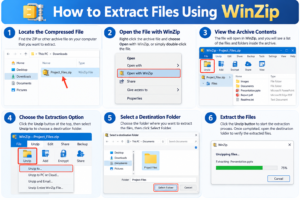
How to Extract Files Using WinZip
Extracting files is just as important as compressing them. You may need to extract an archive to edit a document, run a software project, or access photographs stored in a ZIP file.
Follow these general steps:
- Locate the compressed archive on your computer.
- Open the archive using WinZip.
- Select the extraction option, such as Unzip or Unzip to.
- Choose a destination folder.
- Start the extraction process.
- Open the destination folder and verify that the required files are present.
WinZip’s extraction tools support a variety of archive formats, although the operations available depend on the format and version.
One useful practice is to extract unfamiliar archives into a separate folder rather than directly into an important project directory. This helps keep files organized and reduces the risk of accidentally overwriting existing work.
Also, avoid opening unexpected attachments or extracting files from untrusted sources. Compressed archives can contain malicious files, so use reputable sources and appropriate security software.
How Does WinZip Work?
WinZip works by creating archives, compressing supported data, and extracting files when required. The exact amount of compression depends on the file type and the selected settings.
1. File Compression
File compression reduces the amount of storage space needed for suitable files by encoding their data more efficiently. WinZip can create compressed archives in formats such as ZIP and ZIPX.
When you compress a folder containing documents, spreadsheets, or text files, the resulting archive may be smaller than the original collection. This can make it easier to store, upload, or transfer those files.
However, compression results vary. Files that are already compressed, such as many JPEG photographs, MP4 videos, and certain downloaded archives, may not become significantly smaller.
2. File Extraction
WinZip can open supported archive formats and extract their contents to a selected location. This is useful when receiving compressed files from colleagues, downloading resources from websites, or accessing backed-up documents.
For example, if you download a ZIP file containing HTML, CSS, JavaScript, and image files for a web development project, you can extract the archive into a project folder and work with the individual files.
3. File Organization
WinZip includes file management capabilities that can help users locate, open, move, and share files across supported locations. Some editions also offer additional organization tools.
These capabilities can reduce the need to switch repeatedly between separate applications for common file-related tasks.
4. Secure File Handling
WinZip provides encryption options for protecting files inside supported archives. When configured correctly, encryption can help prevent unauthorized people from reading sensitive information without the required password.
This is especially useful when sharing confidential business documents, personal records, or project files.
Overall, WinZip combines compression, extraction, and additional file-handling functions to help users work with digital content more efficiently.
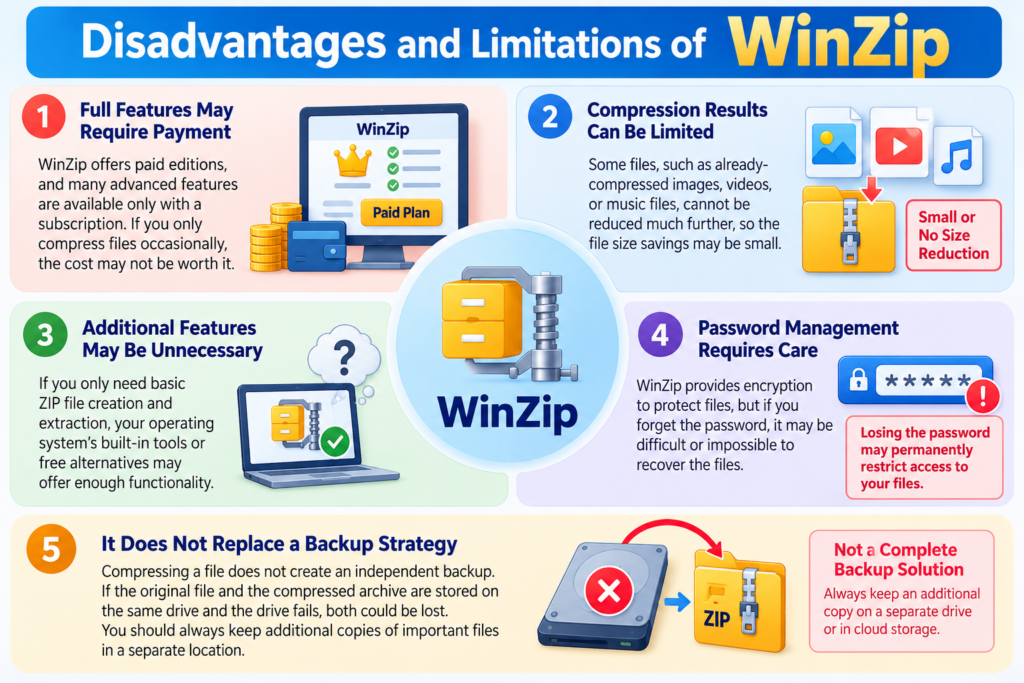
Disadvantages and Limitations of WinZip
Although WinZip can be useful, it is not necessarily the best option for every user.
1. Full Features May Require Payment
WinZip offers paid editions and a trial option. Users should review current pricing, licensing terms, and included features before purchasing.
If you only compress a few files occasionally, paying for additional tools may not be worthwhile.
2. Compression Results Can Be Limited
Some files cannot be compressed much further. For example, compressing an already-compressed video may create an archive that is nearly as large as the original.
Therefore, WinZip should not be treated as a universal solution for freeing up disk space.
3. Additional Features May Be Unnecessary
Users who only need to create and extract basic ZIP files might find that their operating system already provides the necessary functionality.
In such cases, a dedicated paid application may offer more features than the user actually needs.
4. Password Management Requires Care
Encryption can protect files, but losing the password may make recovery difficult or impossible. Users should store passwords securely and ensure that authorized recipients can access them when necessary.
5. It Does Not Replace a Backup Strategy
Compressing a file does not create an independent copy of that file. If the original and the only archive are stored on the same failing drive, both could be lost.
Use separate storage locations and verify your backups regularly.
Key Features of WinZip for File Compression and Storage Management
WinZip offers several features that can simplify everyday file management. Although the available capabilities depend on the product edition, the following functions are particularly useful for people who regularly handle large collections of digital files.
1. Compress Files and Folders
One of the primary reasons people use WinZip is its ability to compress files and folders into archives. Rather than managing many separate documents, users can package related files together and store them as a single archive.
For instance, a photographer might combine images from a particular event into one archive, while a student could package assignment documents and reference materials together.
The benefits include:
- Combining multiple files into a single archive.
- Potentially reducing the storage space required.
- Making file transfers more convenient.
- Keeping related documents together.
- Creating archives that are easier to organize and back up.
WinZip supports different compression options, allowing users to choose settings according to their requirements. Its ZIPX format can also offer alternative compression methods for supported content.
Keep in mind that compressing files does not guarantee a substantial reduction in size. The outcome depends on the original data and the compression method used.
2. Extract Multiple Archive Formats
Receiving compressed files from different sources can be inconvenient when each source uses a different archive format. WinZip supports a range of common archive formats, including ZIP, ZIPX, RAR, 7Z, TAR, and GZIP, although supported operations can vary by format and version.
This broad compatibility can be helpful when working with downloaded resources, software packages, shared folders, or archived project files.
For example, suppose a colleague sends you a RAR archive while another person shares a ZIP file. With suitable WinZip support, you can handle both through the same application rather than searching for separate extraction utilities.
This makes WinZip a practical option for users who regularly receive files from multiple sources.
3. Password Protection and Encryption
File security is an important consideration when storing or sharing digital information. WinZip offers encryption options, including AES-128 and AES-256 for supported file workflows, to help protect confidential data.
This feature can be useful for protecting:
- Business reports and financial documents.
- Private photographs and personal records.
- Client files and project deliverables.
- Confidential spreadsheets.
- Sensitive documents being transferred between colleagues.
When creating an encrypted archive, users can set a password that recipients need to access the protected contents.
Choose a strong, unique password and share it through a separate, trusted communication channel whenever possible. Losing the password may prevent you from recovering the protected files.
It is also important to understand that encryption is not the same as a complete backup or security system. It does not automatically protect your computer from malware or guarantee that files stored elsewhere are safe.
4. Integration With Cloud Storage
Cloud storage has become a convenient way to access files across different devices and collaborate with other people. WinZip offers integration with supported cloud services, including options such as Google Drive, Dropbox, and OneDrive. Availability can depend on the edition and service configuration.
Cloud-related capabilities can help users work with files without repeatedly downloading, compressing, and uploading them through entirely separate workflows.
Potential benefits include:
- Managing files across supported storage locations.
- Preparing archives for cloud sharing.
- Organizing documents for online backup.
- Sharing compressed files with remote colleagues.
- Protecting selected files before transferring them.
For example, a web developer working on a website may need to share source documents, screenshots, and project resources with a remote team. Preparing an archive and placing it in a supported cloud location can make the transfer more organized.
However, cloud integration does not necessarily mean that WinZip supplies unlimited cloud storage. Users should check the storage provider’s terms, account limits, and the features included in their WinZip edition.
5. Share Large Files More Conveniently
Email attachments and file-sharing services often impose file-size limits. When several documents need to be shared, sending each one separately can also make communication unnecessarily complicated.
WinZip can help by combining files into an archive and, when the contents are compressible, reducing the amount of data that needs to be transferred.
Its sharing tools may also support workflows involving cloud links, encryption, and other sharing options, depending on the version.
Consider a business team preparing a presentation with spreadsheets, reports, images, and supporting documents. Packaging these items into one archive makes it easier to communicate exactly which files belong to the same project.
Before sharing, check the archive size against the recipient’s email or upload limits. If the archive remains too large, a cloud-sharing link or another approved transfer method may be more suitable.
6. Manage Duplicate and Unnecessary Files
Duplicate files can accumulate over time when documents are downloaded more than once, copied between folders, or saved under different working directories.
Some WinZip editions provide duplicate-file detection and other tools intended to help users identify and manage unnecessary files. Certain versions also include additional file-cleaning and background-management capabilities.
These features may help users review their storage and maintain a more organized digital workspace.
However, duplicate detection should be used carefully. Two files with similar names may contain different information, and a file that appears unnecessary may still be important for a project or backup.
Always review files before deleting them. For important data, maintain a separate backup and verify that the backup can be accessed.
7. Create Archives for Backup and Long-Term Storage
Keeping related documents in a structured archive can make long-term file management easier.
For example, you might create separate archives for:
- Each month’s business invoices.
- Completed academic assignments.
- Website project releases.
- Personal photographs from different occasions.
- Old documents that you need to retain but rarely access.
A clear naming system makes archives easier to identify later. You could use names such as Website_Project_October_2026.zip or Invoices_2026_Q3.zip.
WinZip can help prepare these collections for storage and can work with supported backup and cloud workflows. Nevertheless, a compressed archive is not automatically a backup. If the only copy becomes corrupted, deleted, or inaccessible, you could lose the data.
For important files, keep an additional copy on a separate drive or in a reliable cloud backup service.
Can WinZip Actually Save Storage Space?
Yes, WinZip can save storage space when it compresses files that contain data suitable for further compression. However, the amount of space saved depends on the file types involved.
Text files, certain documents, and uncompressed data may shrink considerably. Already-compressed images, videos, music files, and existing archives may show much smaller improvements.
Consider this illustrative example:
File collection | Original size | Example compressed size |
Documents and text files | 500 MB | 250 MB |
Mixed project files | 1 GB | 800 MB |
Already-compressed media | 2 GB | 1.95 GB |
These are hypothetical examples, not measured WinZip performance results. Actual results may differ significantly.
In the first example, the archive reduces the collection from 500 MB to 250 MB, saving 250 MB. In the third example, the reduction is only 50 MB because the files are already compressed.
The important point is that WinZip can help manage storage, but it cannot guarantee a particular compression ratio.
If your main goal is to free up disk space, consider reviewing large unused files, deleting unnecessary downloads, moving older files to external storage, and using compression when it provides a meaningful benefit.
Is WinZip Safe to Use?
WinZip provides encryption features intended to protect sensitive information in supported archives. However, safe usage depends on how the software is obtained, configured, and used.
Follow these recommendations to reduce unnecessary risks:
- Download the application from its official source.
- Keep the software updated.
- Use strong, unique passwords for encrypted archives.
- Avoid opening suspicious attachments from unknown senders.
- Scan untrusted downloads with reputable security software.
- Store important files in more than one secure location.
- Check sharing permissions before distributing confidential documents.
When sharing sensitive information, make sure the encryption settings are enabled correctly. Do not assume that every archive is encrypted simply because you created it with WinZip.
Also, encryption does not make a malicious file harmless. An archive can contain dangerous content, so always consider the source before extracting and opening its files.
How to Use WinZip to Compress Files Step by Step
You do not need advanced technical knowledge to begin using WinZip. The general process for creating a compressed archive is straightforward, although the exact interface may differ by version.
Step 1: Install and Open WinZip
Download WinZip from its official source and install the version appropriate for your device. Open the application after installation.
Step 2: Select Your Files
Choose the files or folders you want to compress. Group related documents together to make the resulting archive easier to understand.
Step 3: Create a ZIP Archive
Use the available Add to Zip or equivalent command. Select the desired archive format and compression settings where available.
Step 4: Add Protection if Needed
If the files contain confidential information, enable an appropriate encryption option and set a strong password before saving.
Step 5: Save and Verify the Archive
Choose a suitable destination, save the archive, and check that it opens correctly and contains the intended files.
These steps describe the general workflow; button names and available settings can vary between WinZip editions.
Practical Ways to Use WinZip in Everyday Life
The usefulness of WinZip becomes clearer when you consider the different situations in which file compression and storage management are necessary.
1. For Students and Teachers
Students often work with assignments, presentations, research papers, PDFs, and educational resources. Keeping these materials organized can be difficult when files are scattered across multiple folders.
WinZip can help students:
- Combine assignment files into one archive.
- Organize study materials by subject or semester.
- Share project documents with classmates.
- Archive completed assignments for future reference.
- Protect selected files containing private information.
Teachers can also use compressed archives to distribute lesson materials, worksheets, and supporting documents more conveniently.
2. For Web Developers and IT Professionals
Web developers frequently handle HTML, CSS, JavaScript, PHP files, images, documentation, and project resources. Sending these files individually can be inconvenient, particularly when collaborating with a remote team.
WinZip can make these workflows easier by allowing developers to package related resources into one archive.
For example, a developer can create a ZIP archive containing a website’s static assets and documentation before sharing it with a colleague. It can also be useful for transferring project snapshots or storing completed versions of a website.
However, compression should not replace version control systems such as Git. Developers should continue using proper source-control practices, maintain backups, and avoid including passwords, API keys, or other secrets in shared archives.
3. For Businesses and Office Workers
Businesses handle invoices, contracts, presentations, spreadsheets, reports, and customer documents daily. Organizing these files properly can improve productivity and reduce confusion.
WinZip may help office workers:
- Package related documents for clients.
- Compress files before transferring them.
- Encrypt sensitive information where appropriate.
- Prepare archives for long-term document retention.
- Work with supported cloud storage services.
Businesses should also establish file-retention policies, access controls, and approved sharing procedures. Compression software can support these practices, but it cannot replace a comprehensive information-security policy.
4. For Photographers and Content Creators
Photographers and content creators often manage large collections of images, project assets, and supporting documents.
WinZip can help organize these resources into archives based on projects, clients, or dates. However, JPEG images and many other media formats are already compressed, so placing them in a ZIP archive may not significantly reduce their size.
If your primary goal is to reduce image dimensions or convert image formats, a dedicated image optimization tool may be more appropriate than general-purpose archive compression.
5. For Personal File Management
Personal computers can accumulate years of documents, downloads, photographs, and old projects.
WinZip can help you group older files into archives and move them to suitable storage locations. Creating archives with clear names can also make it easier to find information later.
For example, you might create separate archives for tax documents, completed projects, travel photographs, and old educational materials.
Remember to retain accessible backups of important files and periodically verify that archived data remains readable.
Advantages of WinZip
WinZip offers several potential benefits for people who need more than basic file compression.
Convenient File Compression
Combine multiple files into a single archive and reduce the size of suitable data. This can simplify file sharing and help organize related documents.
Support for Multiple Formats
Work with various common archive formats without necessarily needing a separate application for every format.
Encryption Options
Protect supported archives containing confidential information with password-based encryption.
Cloud Workflow Integration
Work with supported cloud storage services and simplify selected file-sharing workflows.
Additional File Management Tools
Depending on the edition, use features for duplicate detection, file organization, sharing, and backup workflows.
These advantages make WinZip worth considering for users who regularly work with many files and want compression, security, and management tools in a more integrated workflow.
WinZip vs. Free File Compression Alternatives
Before choosing WinZip, it is helpful to compare it with other popular options.
Feature | WinZip | 7-Zip | Built-in ZIP tools |
Create and extract ZIP files | Yes | Yes | Yes, on supported systems |
Additional archive formats | Broad support | Broad support | More limited |
Advanced file management | Available features vary by edition | More focused on archiving | Basic |
Encryption options | Available for supported workflows | Supports encrypted archives in supported formats | Depends on operating system and tool |
Cloud-related integrations | Available for supported services and editions | Not its main focus | Generally limited |
Cost | Paid product with trial options | Free and open source | Generally included with the operating system |
This is a general comparison. Exact capabilities depend on software versions, operating systems, archive formats, and installed components.
When Should You Choose WinZip?
WinZip may be a good choice if you regularly compress files, work with several archive formats, need encryption options, and want additional file management or cloud-sharing capabilities.
Its broader feature set may be particularly useful for professionals and users who manage many files.
When Is 7-Zip a Better Choice?
7-Zip is worth considering if you prefer free, open-source software primarily for creating and extracting archives. It supports multiple formats and provides strong compression options for suitable data.
It may be sufficient if you do not need WinZip’s broader set of management and sharing features.
When Are Built-In ZIP Tools Enough?
Your operating system’s built-in archive tools may be all you need if your main tasks involve creating basic ZIP files and extracting downloaded documents.
These tools can be convenient because you may not need to install additional software.
Ultimately, the right option depends on whether you value additional convenience and features more than minimizing software costs.
Tips for Getting the Most Out of WinZip
If you decide to use WinZip, a few simple habits can make file compression and storage management more effective.
Organize Files Before Compressing Them
Remove unnecessary duplicates only after checking that they are genuinely redundant. Group related documents together before creating an archive.
This makes your archives easier to understand and maintain.
Use Descriptive Archive Names
Avoid generic names such as NewZip.zip or Files2.zip.
Instead, use names that communicate the contents and date, such as Client_Reports_October_2026.zip. Consistent naming makes archives easier to search for later.
Choose Appropriate Compression Settings
Use stronger compression settings when reducing file size is important and the extra processing time is acceptable. For files that are already compressed, avoid expecting substantial improvements.
Protect Confidential Archives
Enable encryption when storing or sharing sensitive information. Keep passwords in a trusted password manager and share them securely with authorized recipients.
Review Cloud Storage and Backup Settings
If you use cloud-related features, confirm which files are being transferred, where they are stored, and who can access them.
Do not confuse cloud synchronization with an independent backup. Changes or deletions may be reflected across synchronized locations, depending on the service.
Test Your Archives
After creating an important archive, open it and verify that the expected files are present. For long-term archives, consider periodic integrity checks and test extractions.
These small practices can help prevent confusion and reduce the risk of losing access to important information.
Who Should Use WinZip?
WinZip is most suitable for people who frequently handle compressed files and want additional tools beyond basic archiving.
It may be useful for:
- Students: Packaging assignments and study materials.
- Professionals: Sharing groups of documents efficiently.
- Web developers: Distributing project resources and archived deliverables.
- Businesses: Organizing reports and transferring selected confidential files.
- Photographers: Grouping images and project assets.
- Everyday users: Opening downloaded archives and organizing personal files.
However, people who rarely compress files may not need a separate paid tool. Built-in archive utilities or free alternatives can handle many basic requirements.
The best approach is to identify your actual needs first and then choose the software that meets them without unnecessary expense.
Conclusion
WinZip can make file compression and storage management easier by bringing together archive creation, file extraction, encryption, sharing, and selected file organization capabilities. It can help students manage assignments, professionals share documents, developers distribute project resources, and businesses handle groups of files more efficiently.
Its biggest advantage is the combination of traditional compression features with additional tools for file management and secure sharing. For users who regularly work with multiple archive formats or confidential documents, these capabilities may offer meaningful convenience.
However, WinZip is not a universal solution for every storage problem. Compression results vary, already-compressed media may not shrink much, and some of its advanced features may be unnecessary for occasional users. Free alternatives and built-in archive tools can be suitable for basic requirements.
Before choosing WinZip, consider your file management habits, security needs, preferred workflow, and budget. If its additional capabilities match your needs, it can be a useful addition to your digital toolkit.
Ultimately, effective storage management is not just about compressing files. It also involves organizing documents, maintaining backups, using secure sharing practices, and regularly reviewing your digital workspace. With the right habits and tools, you can keep your files more organized, accessible, and manageable.
Read Also:
Tips for Promoting Digital Gaming Products Effectively with UniPin Affiliate Hub
The Economist Asia-Pacific Review: Key Features, Insights, and Subscription Benefits
Can Reolink Help Protect Your Home and Business? Features and Benefits
How to Create Stunning Animated Videos for Digital Marketing with Renderforest
A Complete Guide to Building a Successful Remote Work Environment
Frequently asked questions
WinZip is used to compress files, create archives, extract compressed content, and manage file-sharing workflows. Depending on the edition, it also provides encryption, cloud integration, backup, and additional file management features.
Yes. WinZip can reduce the size of files that are suitable for compression. The amount saved depends on the original file type, its existing compression, and the settings selected. Already-compressed media may show little improvement.
WinZip offers a trial option, but its full product is paid. Check the current trial terms, prices, licensing details, and edition-specific features before making a purchase.
WinZip offers encryption options for supported archives, which can help protect confidential information. Use strong passwords, enable encryption correctly, obtain the software from an official source, and share passwords securely.
WinZip supports opening and extracting various archive formats, including RAR and 7Z, subject to version and format-specific limitations. Check the supported-format list for your edition if you need a particular feature.